Netgear EX7500 Setup, One WiFi Name, Link Status, Login & Reset
Official sources used for this guide
- NETGEAR EX7500 support and downloads
- NETGEAR: Set up a WiFi range extender
- NETGEAR: Troubleshoot access to mywifiext.net
Menus, LEDs and supported features vary by model and firmware. Check the model label and current manufacturer documentation before changing settings.
EX7500 is a Nighthawk X4S range extender designed around mesh-style One WiFi Name behaviour and a dedicated Link Status LED for router-to-extender placement.
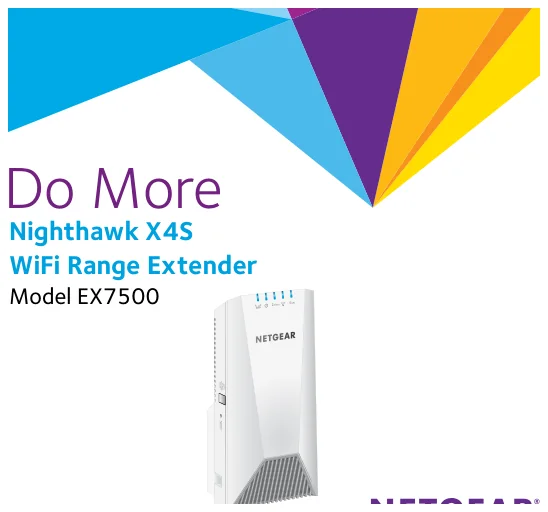
1. Netgear EX7500 Overview
The supplied EX7500 guide is focused on post-installation management: connecting clients, local login, One WiFi Name addressing and router MAC-filter compatibility. Its Link Status LED uses blue, amber and red rather than the green/amber/red convention used on many other extenders.
2. Netgear EX7500 setup Guide
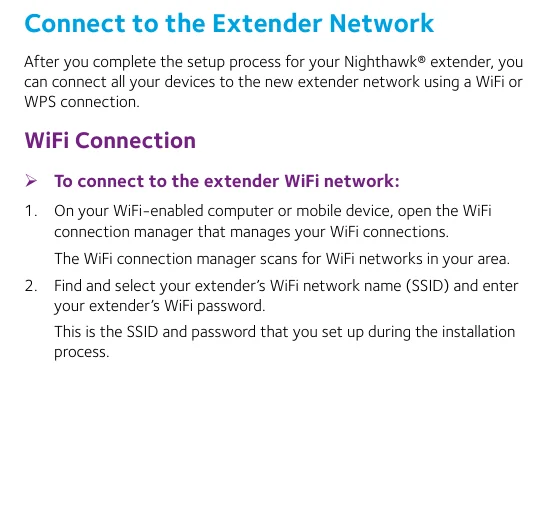
Complete initial Nighthawk extender setup, then connect WiFi devices to the configured extender network. If One WiFi Name is enabled, devices reuse the router SSID and password instead of switching to a separately named extender SSID.
3. EX7500 Tri-Band Link Status, One WiFi Name & MAC Filtering
The supplied EX7500 guide is focused on post-installation management: connecting clients, local login, One WiFi Name addressing and router MAC-filter compatibility. Its Link Status LED uses blue, amber and red rather than the green/amber/red convention used on many other extenders.
| Feature | EX7500 detail |
|---|---|
| Family | Nighthawk X4S |
| Mesh feature | One WiFi Name |
| Placement LED | Blue / amber / red Link Status |
| Login | Platform-dependent with One WiFi Name |
| Advanced issue | Translated MAC addresses with router ACLs |
4. Netgear EX7500 Login & Local Management
Without One WiFi Name, browse to www.mywifiext.net. With One WiFi Name, use mywifiext on Windows, mywifiext.local on Mac/iOS, and the extender's IP address on Android.
5. How to Reset Netgear EX7500
If login settings or addressing become unusable, return the EX7500 to factory settings and repeat setup. Use the factory reset procedure documented for the hardware revision and wait for the reboot.
6. Netgear EX7500 Firmware Update
Firmware maintenance is performed through NETGEAR's extender management workflow and support downloads. Use the correct EX7500 package and avoid interrupting the update.
7. Netgear EX7500 Troubleshooting
8. EX7500 tri-band Link Status checks
Use the EX7500 link/placement indicators before changing passwords or performing a factory reset. A weak router-to-extender link can make otherwise correct setup credentials appear unreliable. If a client connects to EX7500 but Internet access fails, verify the router uplink first, then check DHCP/gateway information on the client. A connected WiFi icon only confirms the local radio association.
EX7500 Model-Specific Quick Diagnosis
This AC2200 tri-band mesh extender guide uses the following checks to keep EX7500 troubleshooting distinct from other extender families.
| Observed symptom | EX7500-specific next check |
|---|---|
| Dedicated backhaul is not established | Reconfigure near the router and ensure the supported 5 GHz router band is available. |
| One WiFi Name causes uncertain association | Toggle client WiFi near the EX7500 and confirm the serving node through the network interface. |
| WPS completes but internet fails | Check router internet first, then reconnect the client using the current shared WiFi password. |
| Placement light is poor | Move toward the router in small steps; tri-band design still requires a reliable backhaul signal. |
9. Netgear EX7500 FAQs
What is the main setup method for EX7500?
Complete initial Nighthawk extender setup, then connect WiFi devices to the configured extender network.
How do I log in to EX7500?
Without One WiFi Name, browse to www.mywifiext.net. With One WiFi Name, use mywifiext on Windows, mywifiext.local on Mac/iOS, and the extender's IP address on Android.
How do I reset EX7500?
If login settings or addressing become unusable, return the EX7500 to factory settings and repeat setup. Use the factory reset procedure documented for the hardware revision and wait for the reboot.
How should I update EX7500 firmware?
Firmware maintenance is performed through NETGEAR's extender management workflow and support downloads. Use the correct EX7500 package and avoid interrupting the update.