Netgear EAX12 Setup, Smart Connect, FastLane, AP Mode & Firmware
Official sources used for this guide
- NETGEAR EAX12 support and downloads
- NETGEAR: Set up a WiFi range extender
- NETGEAR: Troubleshoot access to mywifiext.net
Menus, LEDs and supported features vary by model and firmware. Check the model label and current manufacturer documentation before changing settings.
EAX12 is an AX1600 4-Stream WiFi 6 mesh extender with Gigabit Ethernet, Nighthawk app setup, One WiFi Name, Smart Connect, MU-MIMO, FastLane and access point mode.
1. Netgear EAX12 Overview
EAX12 exposes a broader feature set than most entry-level WiFi 6 extenders. The manual lets users control One WiFi Name, Smart Connect, MU-MIMO and WiFi 6 itself, while still offering legacy WPS, browser setup and FastLane.
2. Netgear EAX12 setup Guide
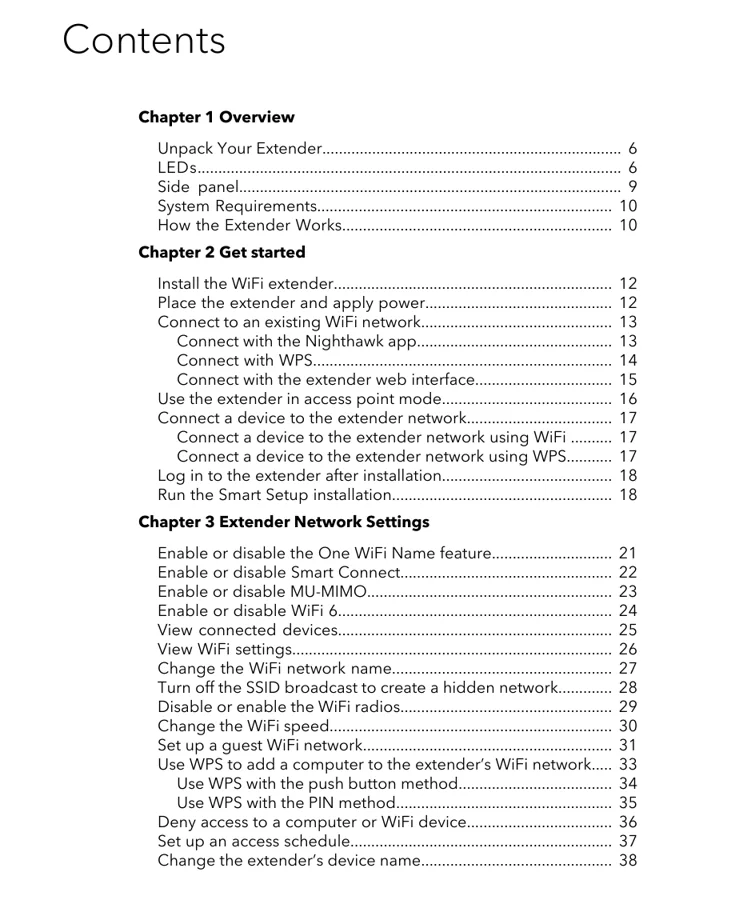
Use the Nighthawk app for the simplest setup: power EAX12, connect the phone to NETGEAR_EXT and follow the app. WPS and the extender web interface are alternatives. In access point mode, connect a router LAN port to the EAX12 Gigabit Ethernet port and finish setup at mywifiext.local.
3. EAX12 WiFi 6 Controls, FastLane & Mesh Naming
EAX12 exposes a broader feature set than most entry-level WiFi 6 extenders. The manual lets users control One WiFi Name, Smart Connect, MU-MIMO and WiFi 6 itself, while still offering legacy WPS, browser setup and FastLane.
| Feature | EAX12 detail |
|---|---|
| WiFi | AX1600 4-Stream WiFi 6 |
| Ethernet | 1 × Gigabit |
| Features | One WiFi Name / Smart Connect / MU-MIMO |
| Performance option | FastLane |
| Modes | Extender / Access Point |
4. Netgear EAX12 Login & Local Management
For local web management, connect to EAX12 and use the address appropriate to its current configuration. The manual uses mywifiext.local for browser-based AP setup and creates a dedicated administrator username and password separate from the WiFi password.
5. How to Reset Netgear EAX12
The EAX12 can be reset with its side-panel Reset button or from the onscreen RESET control. The manual's factory defaults restore NETGEAR_EXT and clear custom administrator/network settings.
6. Netgear EAX12 Firmware Update
The maintenance chapter supports automatic firmware checks and manual uploads. Use the EAX12 firmware package, keep power connected and wait for the extender to finish restarting.
7. Netgear EAX12 Troubleshooting
8. EAX12 FastLane and mesh-name checks
Use the EAX12 link/placement indicators before changing passwords or performing a factory reset. A weak router-to-extender link can make otherwise correct setup credentials appear unreliable. If a client connects to EAX12 but Internet access fails, verify the router uplink first, then check DHCP/gateway information on the client. A connected WiFi icon only confirms the local radio association.
9. Netgear EAX12 FAQs
What is the main setup method for EAX12?
Use the Nighthawk app for the simplest setup: power EAX12, connect the phone to NETGEAR_EXT and follow the app.
How do I log in to EAX12?
For local web management, connect to EAX12 and use the address appropriate to its current configuration. The manual uses mywifiext.local for browser-based AP setup and creates a dedicated administrator username and password separate from the WiFi password.
How do I reset EAX12?
The EAX12 can be reset with its side-panel Reset button or from the onscreen RESET control. The manual's factory defaults restore NETGEAR_EXT and clear custom administrator/network settings.
How should I update EAX12 firmware?
The maintenance chapter supports automatic firmware checks and manual uploads. Use the EAX12 firmware package, keep power connected and wait for the extender to finish restarting.