Netgear EXS18 Setup, WiFi 7, 2.5GbE, Reset & Lights
Official sources used for this guide
- NETGEAR EXS18 support and downloads
- NETGEAR: Set up a WiFi range extender
- NETGEAR: Troubleshoot access to mywifiext.net
Menus, LEDs and supported features vary by model and firmware. Check the model label and current manufacturer documentation before changing settings.
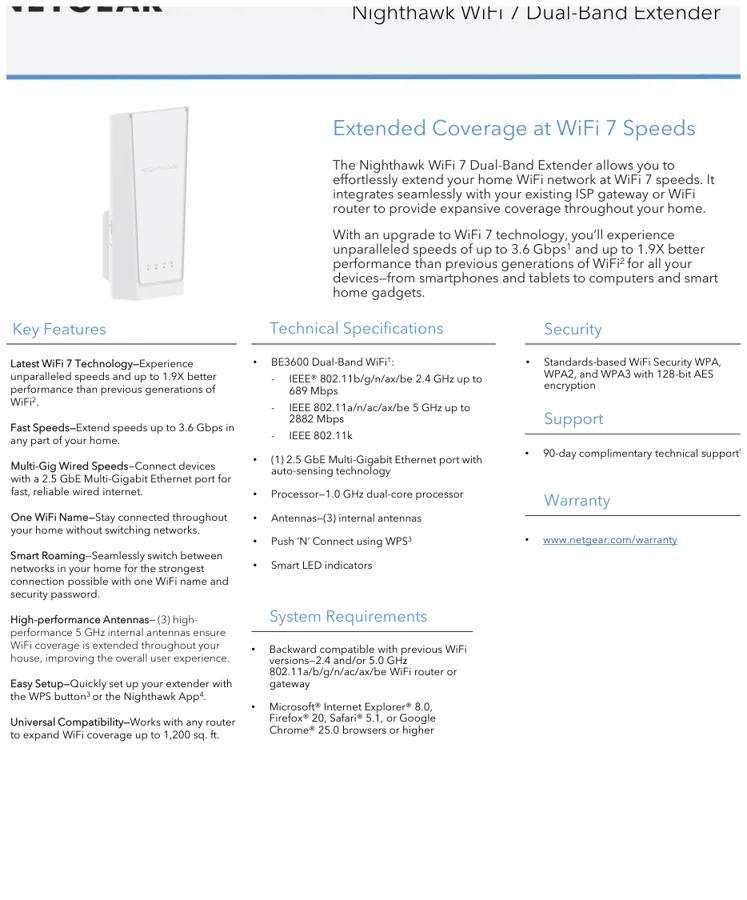
EXS18 is a Nighthawk BE3600 5-Stream WiFi 7 dual-band extender. The technical sheet lists speeds up to 3.6 Gbps, a 2.5 GbE Multi-Gigabit Ethernet port, One WiFi Name, Smart Roaming, three internal antennas and WPA3 security.
1. Netgear EXS18 Overview
The EXS18 page focuses on WiFi 7 and Multi-Gig operation rather than legacy extender workflows. Its BE3600 specification combines up to 689 Mbps on 2.4 GHz with up to 2882 Mbps on 5 GHz, and the 2.5 GbE port can prevent a standard Gigabit LAN port from becoming the wired bottleneck.
2. Netgear EXS18 setup Guide
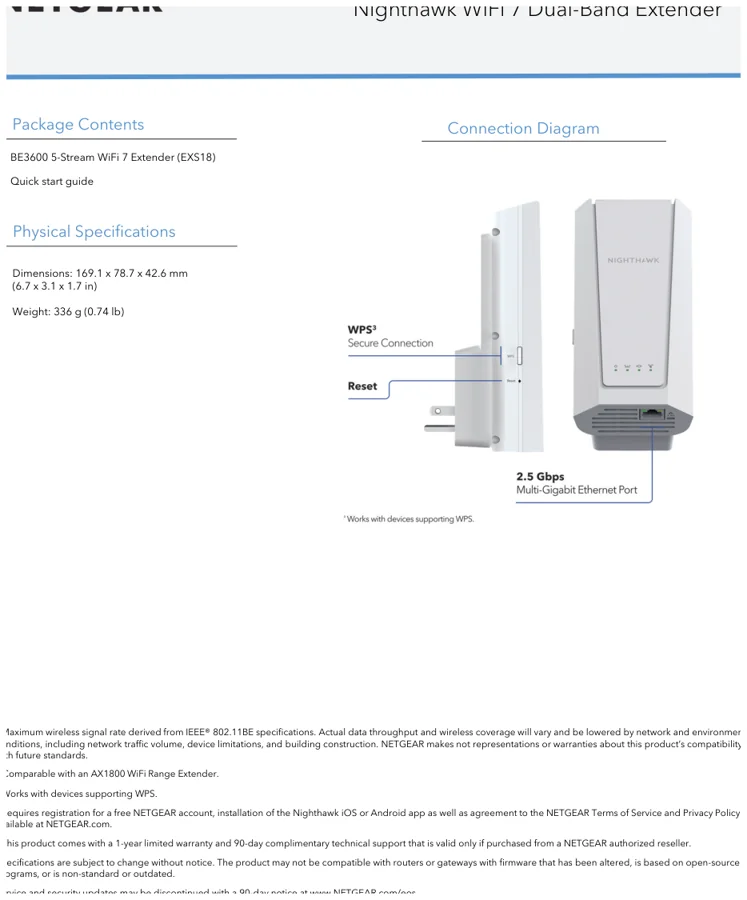
NETGEAR lists two setup paths for EXS18: the WPS button or the Nighthawk app. Start close to the router, complete onboarding, verify the smart indicators, and then move the extender toward the coverage gap while keeping a dependable router link.
3. EXS18 WiFi 7, BE3600 Radio & 2.5 GbE Port
The EXS18 page focuses on WiFi 7 and Multi-Gig operation rather than legacy extender workflows. Its BE3600 specification combines up to 689 Mbps on 2.4 GHz with up to 2882 Mbps on 5 GHz, and the 2.5 GbE port can prevent a standard Gigabit LAN port from becoming the wired bottleneck.
| Feature | EXS18 detail |
|---|---|
| WiFi | BE3600 dual-band WiFi 7 |
| 2.4 GHz | Up to 689 Mbps |
| 5 GHz | Up to 2882 Mbps |
| Ethernet | 1 × 2.5 GbE Multi-Gig |
| Processor | 1.0 GHz dual-core |
| Security | WPA / WPA2 / WPA3 |
4. Netgear EXS18 Login & Local Management
Normal management is through the Nighthawk experience and the management options provided by current EXS18 firmware. Use the address and credentials presented during setup rather than assuming an older extender login format.
5. How to Reset Netgear EXS18
Use the recessed Reset control to return the EXS18 to factory defaults when setup credentials or network configuration must be cleared. Wait until the extender completes its restart before configuring it again.
6. Netgear EXS18 Firmware Update
Use only firmware intended for EXS18. Check the official NETGEAR support/download area or the management interface for updates; never interrupt power while firmware is being written.
7. Netgear EXS18 Troubleshooting
8. EXS18 WiFi 7 and Multi-Gig checks
Use the EXS18 link/placement indicators before changing passwords or performing a factory reset. A weak router-to-extender link can make otherwise correct setup credentials appear unreliable. If a client connects to EXS18 but Internet access fails, verify the router uplink first, then check DHCP/gateway information on the client. A connected WiFi icon only confirms the local radio association.
9. Netgear EXS18 FAQs
What is the main setup method for EXS18?
NETGEAR lists two setup paths for EXS18: the WPS button or the Nighthawk app.
How do I log in to EXS18?
Normal management is through the Nighthawk experience and the management options provided by current EXS18 firmware. Use the address and credentials presented during setup rather than assuming an older extender login format.
How do I reset EXS18?
Use the recessed Reset control to return the EXS18 to factory defaults when setup credentials or network configuration must be cleared. Wait until the extender completes its restart before configuring it again.
How should I update EXS18 firmware?
Use only firmware intended for EXS18. Check the official NETGEAR support/download area or the management interface for updates; never interrupt power while firmware is being written.