Netgear EX6250v2 Setup, One WiFi Name, Smart Connect & AP Mode
Official sources used for this guide
- NETGEAR EX6250V2 support and downloads
- NETGEAR: Set up a WiFi range extender
- NETGEAR: Troubleshoot access to mywifiext.net
Menus, LEDs and supported features vary by model and firmware. Check the model label and current manufacturer documentation before changing settings.
EX6250v2 is an AC1750 WiFi mesh extender with One WiFi Name, Smart Connect, MU-MIMO, FastLane, Ethernet and a hardware Extender/Access Point operating mode.
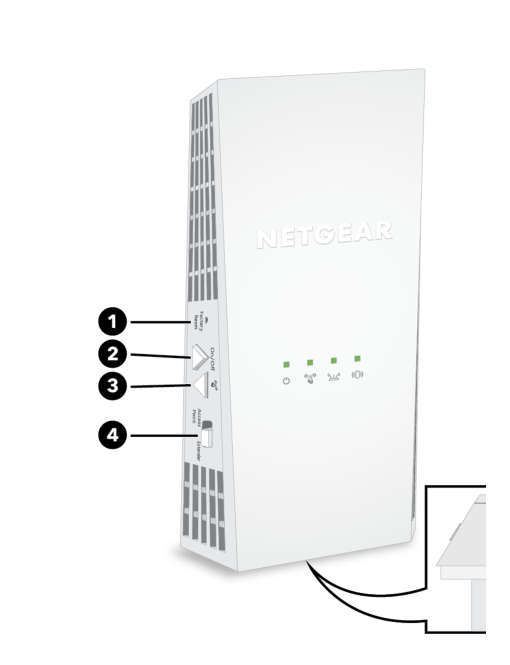
1. Netgear EX6250v2 Overview
EX6250v2 is especially useful for users who want mesh-style naming without moving to WiFi 6. Its manual explains exactly how extended 2.4 GHz and 5 GHz names behave with One WiFi Name and with WPS, and also allows Ethernet-connected clients and access point operation.
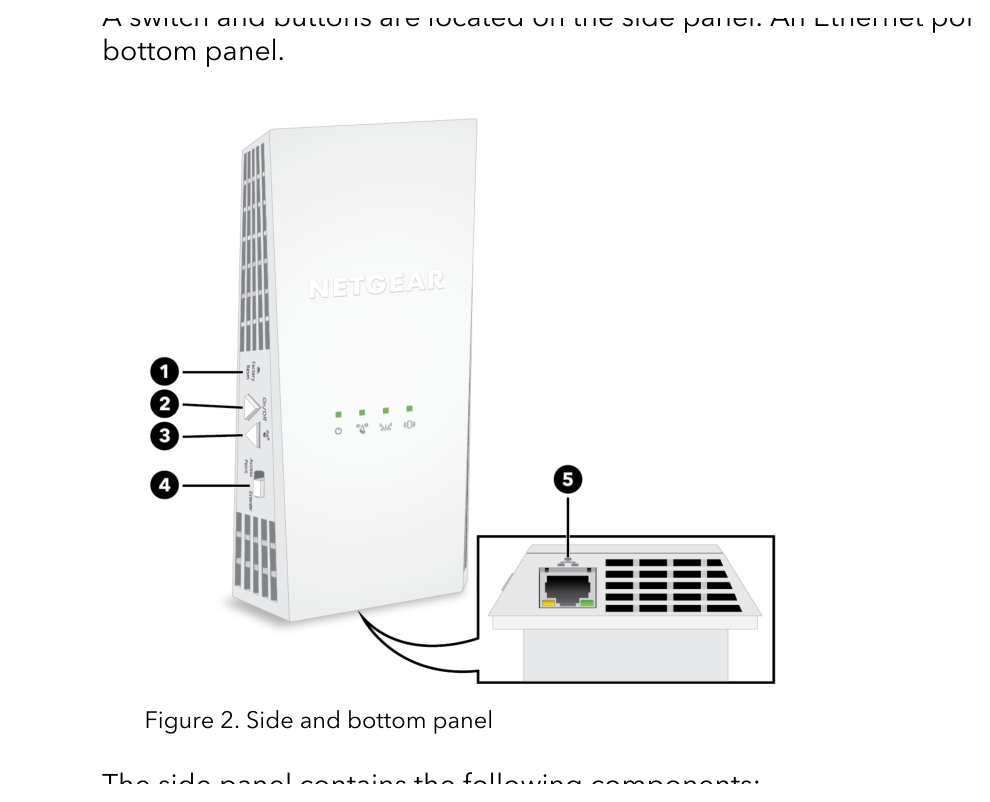
2. Netgear EX6250v2 setup Guide
Use WPS or the NETGEAR installation assistant in extender mode. If One WiFi Name is enabled, the extended bands reuse the router's network names and password. For access point mode, connect Ethernet from the router to the EX6250v2, then complete the AP prompts in the local installation assistant.
3. EX6250v2 One WiFi Name, Mesh Roaming & Ethernet
EX6250v2 is especially useful for users who want mesh-style naming without moving to WiFi 6. Its manual explains exactly how extended 2.4 GHz and 5 GHz names behave with One WiFi Name and with WPS, and also allows Ethernet-connected clients and access point operation.
| Feature | EX6250v2 detail |
|---|---|
| WiFi | AC1750 mesh extender |
| Mesh feature | One WiFi Name |
| Band control | Smart Connect + MU-MIMO |
| Performance | FastLane |
| Modes | Extender / Access Point |
4. Netgear EX6250v2 Login & Local Management
Connect to the configured EX6250v2. Use the local extender hostname when separate SSIDs are in use; with One WiFi Name, select the platform-appropriate local hostname or assigned IP address. The web interface also provides administrator recovery questions.
5. How to Reset Netgear EX6250v2
The Factory Reset button can be held for at least seven seconds until the Power LED signals the reset. Release it and wait for the EX6250v2 to reboot before beginning a new installation.
6. Netgear EX6250v2 Firmware Update
The maintenance interface can check for firmware automatically or accept a manual upload. Confirm the firmware is intended for EX6250v2 and do not interrupt power during installation.
7. Netgear EX6250v2 Troubleshooting
8. EX6250v2 One WiFi Name and mesh checks
Use the EX6250V2 link/placement indicators before changing passwords or performing a factory reset. A weak router-to-extender link can make otherwise correct setup credentials appear unreliable. If a client connects to EX6250V2 but Internet access fails, verify the router uplink first, then check DHCP/gateway information on the client. A connected WiFi icon only confirms the local radio association.
9. Netgear EX6250v2 FAQs
What is the main setup method for EX6250v2?
Use WPS or the NETGEAR installation assistant in extender mode.
How do I log in to EX6250v2?
Connect to the configured EX6250v2. Use the local extender hostname when separate SSIDs are in use; with One WiFi Name, select the platform-appropriate local hostname or assigned IP address. The web interface also provides administrator recovery questions.
How do I reset EX6250v2?
The Factory Reset button can be held for at least seven seconds until the Power LED signals the reset. Release it and wait for the EX6250v2 to reboot before beginning a new installation.
How should I update EX6250v2 firmware?
The maintenance interface can check for firmware automatically or accept a manual upload. Confirm the firmware is intended for EX6250v2 and do not interrupt power during installation.