Netgear EAX17 Setup, Reset, Lights & Firmware Update
Official sources used for this guide
- NETGEAR EAX17 support and downloads
- NETGEAR: Set up a WiFi range extender
- NETGEAR: Troubleshoot access to mywifiext.net
Menus, LEDs and supported features vary by model and firmware. Check the model label and current manufacturer documentation before changing settings.
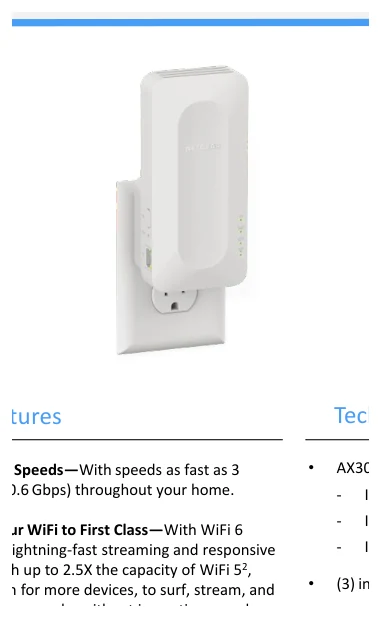
The EAX17 is an AX3000 4-Stream WiFi 6 extender with One WiFi Name, a dual-core 1.3 GHz processor, three internal antennas, WPA3 and one Gigabit Ethernet port.
1. Netgear EAX17 Overview
EAX17 extends 2.4 GHz and 5 GHz WiFi using 802.11ax and supports 802.11k. Its One WiFi Name design is intended to provide unified coverage without forcing users to switch network names manually.
The supplied specification lists three internal antennas, a dual-core 1.3 GHz processor and one 10/100/1000 Ethernet port.
2. Netgear EAX17 Setup
EAX17 Setup with Nighthawk
EAX17 WPS Setup
3. EAX17 WiFi 6 & One WiFi Name
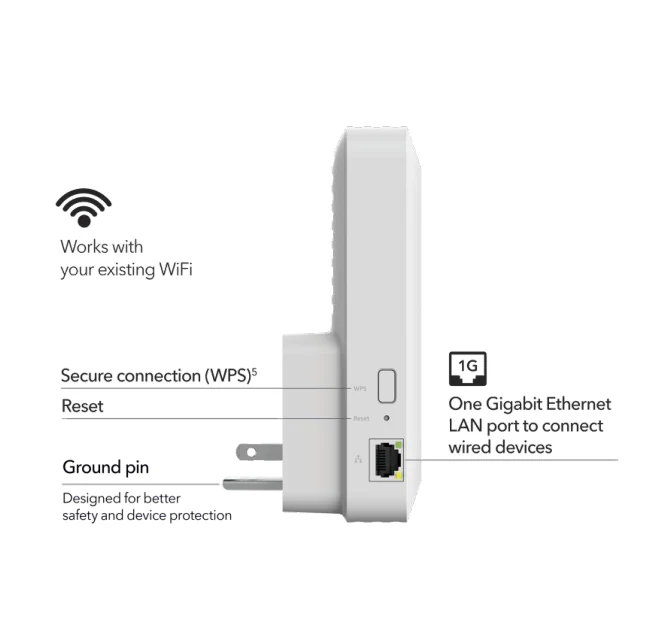
4. Netgear EAX17 Lights & Indicators
| Indicator/control | Purpose |
|---|---|
| Smart LEDs | Connection and setup status. |
| WPS | Push-button pairing. |
| Reset | Recessed factory reset control. |
| 1G LAN | Gigabit wired-client port. |
5. Netgear EAX17 Login
After setup, use the Nighthawk app for routine management. If the current EAX17 firmware provides a local browser interface, connect to the extender first and use the local address presented by the setup flow or your router's device list.
6. How to Reset Netgear EAX17
Resetting the EAX17 clears its saved WiFi and administrator settings. Leave it powered, press the recessed Reset control until the Power LED signals the reset, then wait for the AX3000 extender to finish restarting before reconnecting through its default setup network.
7. Netgear EAX17 Firmware Update
The latest official EAX17 firmware article found during this build lists V1.0.4.40 (January 2026). Install only EAX17 firmware and do not interrupt power during the update.
8. Netgear EAX17 Troubleshooting
WPS fails
Move closer to the router, confirm WPS is enabled, and retry or use Nighthawk setup.
One WiFi coverage is unstable
Reposition the extender to improve its upstream link.
Gigabit client is slow
Check cable, Ethernet negotiation and the WiFi backhaul to the router.
9. Netgear EAX17 Specifications
| Item | Detail |
|---|---|
| Product | AX3000 4-Stream WiFi 6 Extender |
| WiFi | 802.11a/b/g/n/ac/ax; 802.11k |
| Ethernet | 1 × Gigabit |
| Antennas | 3 internal |
| Processor | Dual-core 1.3 GHz |
| Dimensions | 149 × 68.4 × 52.3 mm |
| Weight | 222 g |
10. Netgear EAX17 FAQs
Is EAX17 WiFi 6?
Yes.
Does EAX17 support WPA3?
Yes.
Does it have Ethernet?
Yes, one Gigabit port.
Can it be set up with WPS?
Yes.