Netgear EX6100 Setup, FastLane, AP Mode, Login & Firmware
Official sources used for this guide
- NETGEAR EX6100 support and downloads
- NETGEAR: Set up a WiFi range extender
- NETGEAR: Troubleshoot access to mywifiext.net
Menus, LEDs and supported features vary by model and firmware. Check the model label and current manufacturer documentation before changing settings.
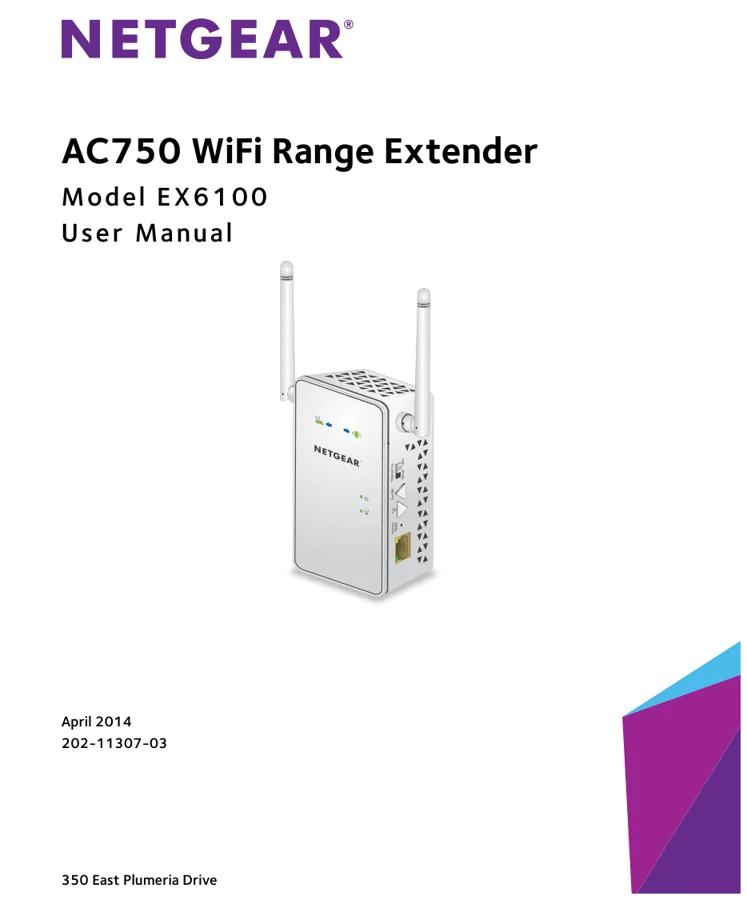
EX6100 is an AC750 range extender with external antennas, Ethernet, a hardware Extender/Access Point switch, Smart Setup and FastLane operating mode.
1. Netgear EX6100 Overview
EX6100 is useful to document separately from EX3700 because its older management workflow uses NETGEAR genie terminology and the original manual's default local login conventions. It can operate as an 802.11ac access point or as a range extender.
2. Netgear EX6100 setup Guide
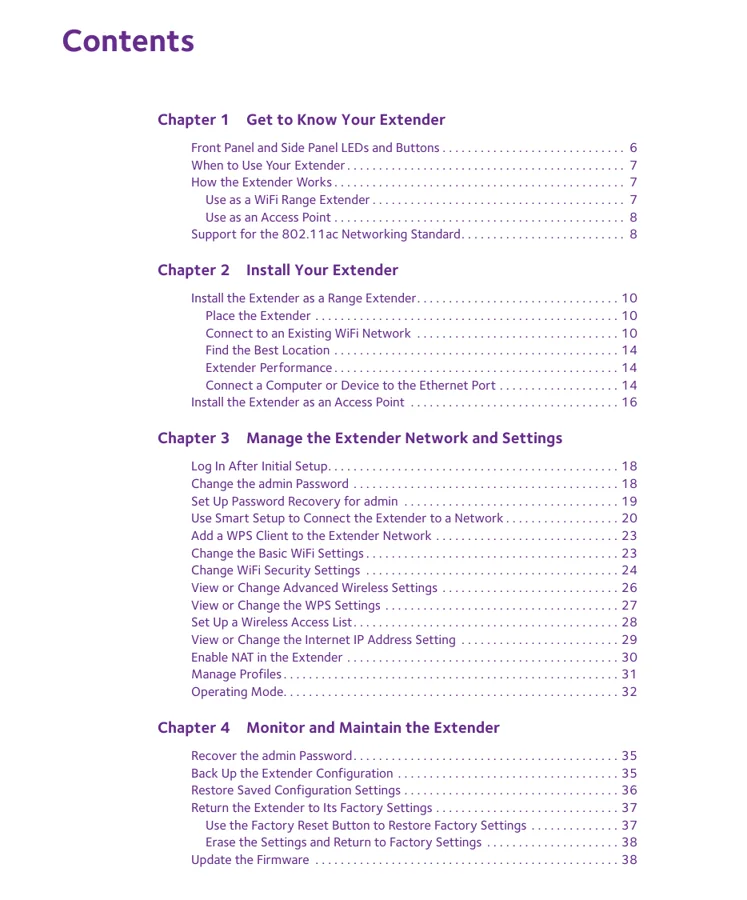
Set the hardware switch for the intended mode. In extender mode, pair with WPS or use Smart Setup at www.mywifiext.net. In access point mode, connect Ethernet from the router or gateway and configure the EX6100 as an 11ac access point.
3. EX6100 NETGEAR Genie Workflow & Access Point Mode
EX6100 is useful to document separately from EX3700 because its older management workflow uses NETGEAR genie terminology and the original manual's default local login conventions. It can operate as an 802.11ac access point or as a range extender.
| Feature | EX6100 detail |
|---|---|
| WiFi | AC750 |
| Modes | Extender / 11ac Access Point |
| Performance | FastLane |
| Management | NETGEAR genie / mywifiext.net |
| Hardware | External antennas + Ethernet |
4. Netgear EX6100 Login & Local Management
After initial setup, connect to the EX6100 and use www.mywifiext.net. The original manual describes admin as the user name and password as the default password for the initial management workflow, although users should change defaults where the interface permits.
5. How to Reset Netgear EX6100
Use the Factory Reset button to erase customised settings and return the EX6100 to its original configuration. The manual also provides an onscreen erase/reset route from management.
6. Netgear EX6100 Firmware Update
EX6100 has a dedicated Update the Firmware section in its management chapter. Download the correct model firmware, upload it through the web interface and wait for the extender to restart.
7. Netgear EX6100 Troubleshooting
8. EX6100 genie and AP-mode checks
Use the EX6100 link/placement indicators before changing passwords or performing a factory reset. A weak router-to-extender link can make otherwise correct setup credentials appear unreliable. If a client connects to EX6100 but Internet access fails, verify the router uplink first, then check DHCP/gateway information on the client. A connected WiFi icon only confirms the local radio association.
EX6100 Model-Specific Quick Diagnosis
This AC750 with hardware mode switch guide uses the following checks to keep EX6100 troubleshooting distinct from other extender families.
| Observed symptom | EX6100-specific next check |
|---|---|
| Setup assistant cannot find the router | Confirm Extender mode is selected and move the external-antenna unit into the router room. |
| Ethernet-to-router setup fails | Use Access Point mode for wired backhaul; Extender mode expects a wireless router link. |
| A client gets slow or unstable 5 GHz | Test closer to the EX6100 and compare with 2.4 GHz before resetting the unit. |
| Login name fails after One WiFi changes | Find the assigned IP in the router interface and manage the EX6100 locally. |
9. Netgear EX6100 FAQs
What is the main setup method for EX6100?
Set the hardware switch for the intended mode.
How do I log in to EX6100?
After initial setup, connect to the EX6100 and use www.mywifiext.net. The original manual describes admin as the user name and password as the default password for the initial management workflow, although users should change defaults where the interface permits.
How do I reset EX6100?
Use the Factory Reset button to erase customised settings and return the EX6100 to its original configuration. The manual also provides an onscreen erase/reset route from management.
How should I update EX6100 firmware?
EX6100 has a dedicated Update the Firmware section in its management chapter. Download the correct model firmware, upload it through the web interface and wait for the extender to restart.