Netgear PL1010v2 Powerline 1000 Setup, LEDs, Security & Reset
Official sources used for this guide
- NETGEAR PL1010V2 support and downloads
- NETGEAR: Set up a WiFi range extender
- NETGEAR: Troubleshoot access to mywifiext.net
Menus, LEDs and supported features vary by model and firmware. Check the model label and current manufacturer documentation before changing settings.
PL1010v2 is a Powerline 1000 adapter for extending a wired network through existing electrical wiring. It does not create a WiFi extender network by itself.
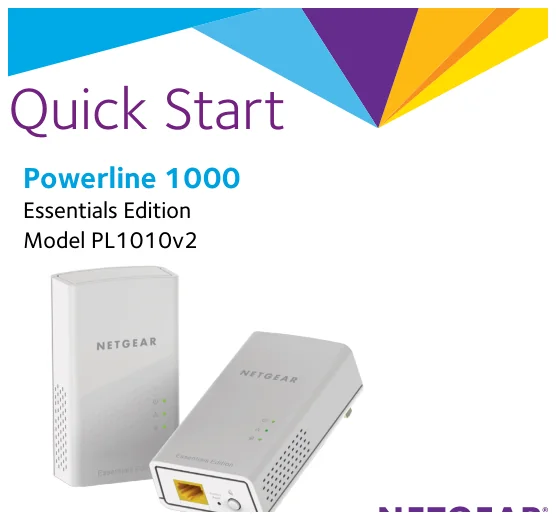
1. Netgear PL1010v2 Overview
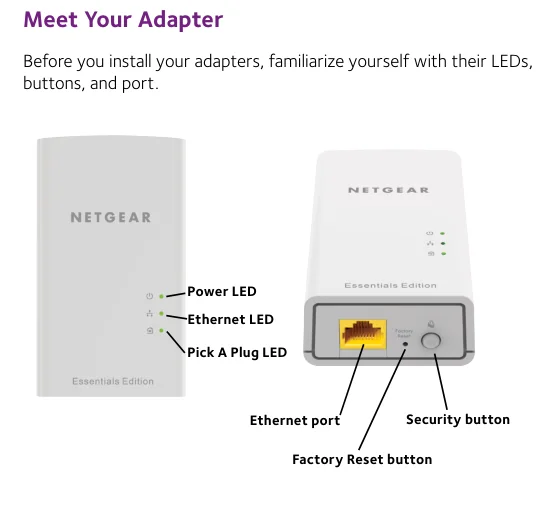
The model's most useful diagnostic is Pick A Plug. The LED helps choose a better electrical outlet for the Powerline path, while the Ethernet LED confirms the wired client connection. The quick-start guide says a network can include up to eight adapters.
2. Netgear PL1010v2 setup Guide
Connect one Powerline adapter to the router by Ethernet and plug it directly into a wall outlet. Plug the second adapter into the room where wired connectivity is needed, then connect the client by Ethernet. Use the Security buttons if you want to establish a private Powerline encryption key.
3. PL1010v2 Pick A Plug LED & Electrical-Link Quality
The model's most useful diagnostic is Pick A Plug. The LED helps choose a better electrical outlet for the Powerline path, while the Ethernet LED confirms the wired client connection. The quick-start guide says a network can include up to eight adapters.
| Feature | PL1010v2 detail |
|---|---|
| Product type | Powerline 1000 wired adapter |
| Network size | Up to 8 adapters |
| Indicators | Power, Ethernet, Pick A Plug |
| Security | Physical Security button |
| Reset | Factory Reset button |
4. Netgear PL1010v2 Login & Local Management
PL1010v2 does not use mywifiext.net because it is a wired Powerline adapter rather than a browser-managed WiFi extender. Day-to-day setup is performed with the physical Security and Factory Reset controls.
5. How to Reset Netgear PL1010v2
Press the Factory Reset button for about one second to return the adapter to factory defaults. The quick-start troubleshooting section recommends reset when adapters no longer share the expected encryption key.
6. Netgear PL1010v2 Firmware Update
The supplied PL1010v2 quick-start document does not provide a browser firmware workflow. For software or utility updates, use only the official NETGEAR support resources for this exact model.
7. Netgear PL1010v2 Troubleshooting
8. PL1010v2 electrical-outlet and Pick A Plug checks
Use the PL1010V2 link/placement indicators before changing passwords or performing a factory reset. A weak router-to-extender link can make otherwise correct setup credentials appear unreliable. If a client connects to PL1010V2 but Internet access fails, verify the router uplink first, then check DHCP/gateway information on the client. A connected WiFi icon only confirms the local radio association.
9. Netgear PL1010v2 FAQs
What is the main setup method for PL1010v2?
Connect one Powerline adapter to the router by Ethernet and plug it directly into a wall outlet.
How do I log in to PL1010v2?
PL1010v2 does not use mywifiext.net because it is a wired Powerline adapter rather than a browser-managed WiFi extender. Day-to-day setup is performed with the physical Security and Factory Reset controls.
How do I reset PL1010v2?
Press the Factory Reset button for about one second to return the adapter to factory defaults. The quick-start troubleshooting section recommends reset when adapters no longer share the expected encryption key.
How should I update PL1010v2 firmware?
The supplied PL1010v2 quick-start document does not provide a browser firmware workflow. For software or utility updates, use only the official NETGEAR support resources for this exact model.